
 English ⯆
FTPGetter Quick Tour
FTPGetter automates the uploading and downloading of files, allowing scheduling file transfers between your computer and remote FTP and SFTP servers. If you frequently access FTP/SFTP servers to synchronize files between the local and the remote PCs, to update Web sites or upload webcam photos, FTPGetter will save you a lot of time and efforts.
Managing FTP server profiles
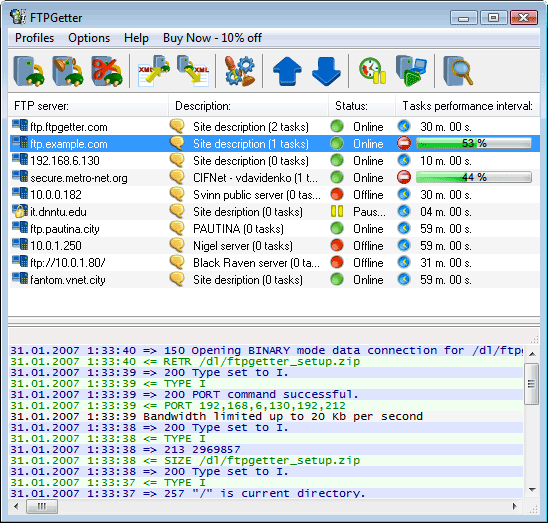
The main window lists FTP/SFTP server profiles, displays file exchange operations and the activity log.
Use the menu or the toolbar to can create or edit FTP/SFTP server profiles, manually start tasks defined in the profiles, browse the server using Site Explorer, and configure FTPGetter.
FTPGetter is able to perform multiple tasks concurrently thanks to the multithreading support.
Creating and editing FTP/SFTP server profiles
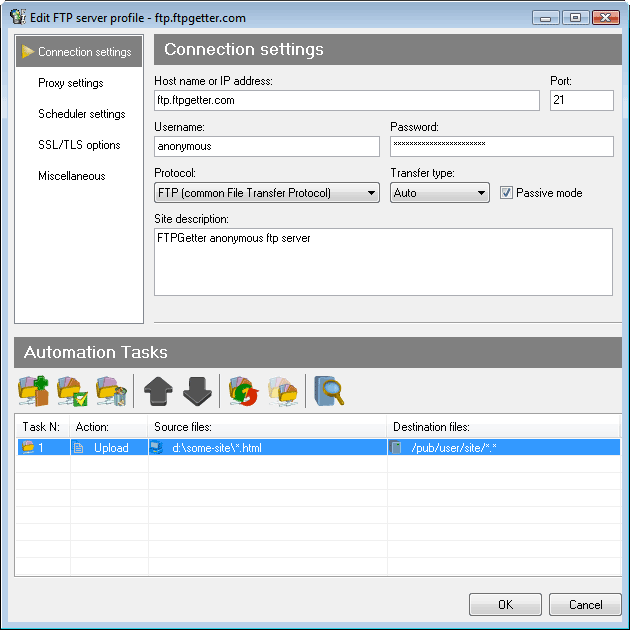
The server profile contains information that is necessary to perform a certain task.
Connection settings allows to configure the address of the remote server and specify FTP/SFTP user name and password, select communication protocol, proxy-server settings and log file.
Tasks - specifies the files and folders to be transferred.
Profile scheduler schedules the jobs, allowing specifying dates, days of weeks, start and finishing times.
Automation Task Wizard
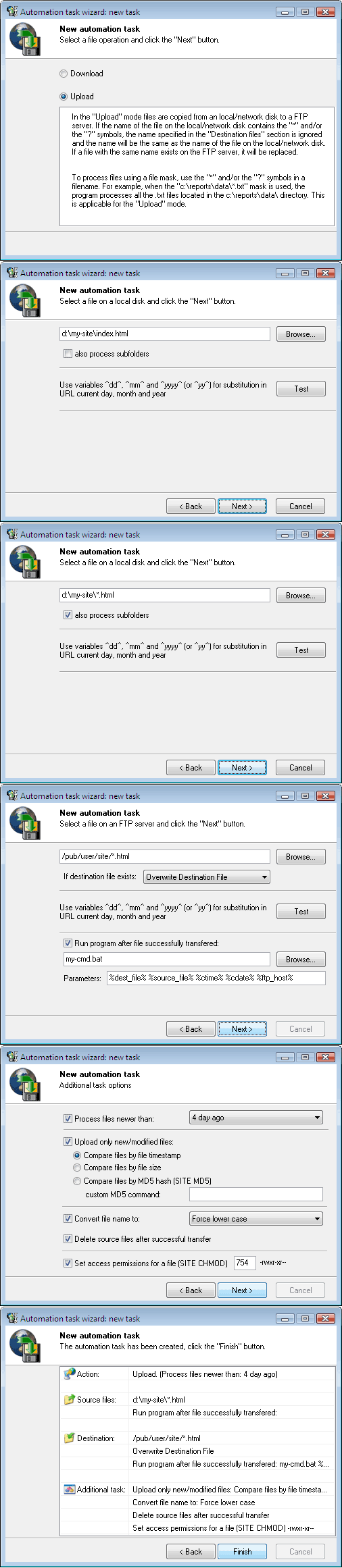
Task Wizard will help you to create jobs in several easy steps.
Step 1. Choose transfer direction: upload, download or synchronize.
Step 2. Specify source files. Depending on whether you are uploading, downloading or synchronizing files and folders, specify either files on the remote server or files on your local computer. You are able to use masks for specifying multiple files.
Step 3. Optionally, specify additional operations such as: perform the comparison of files by the date of modification or MD5 hash or size; change modification date on synchronization, and so on.
Navigating FTP/SFTP servers with Site Explorer
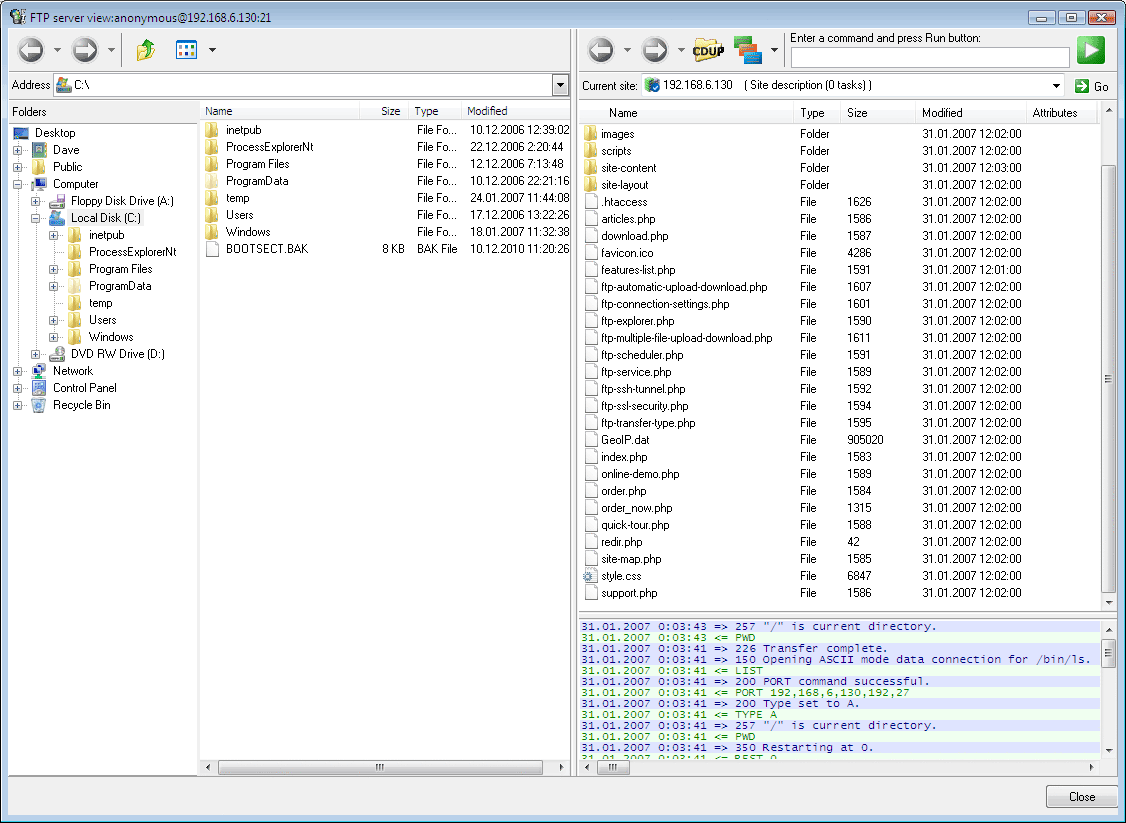
FTPGetter features built-in Site Explorer to navigate servers.
Navigate servers while creating or modifying the jobs to specify files to transfer. Site Explorer is accessible from the FTPGetter main window.
Context menus are available on right mouse click, allowing you to review file properties, change file access rights on FTP/SFTP servers, rename or delete remote files or folders, and execute server-specific commands from the command line. Drag-and-Drop support allows you uploading files and folders directly from Windows Explorer with a mouse.