
 Português ⯆
Como mover ou renomear um arquivo no servidor SFTP que acabou de ser enviado ou baixado?
Se você precisa mover um arquivo no servidor SFTP após uma operação de upload ou download bem-sucedida, deve usar um gatilho pós-transferência.
Um gatilho pós-transferência é executado após uma transferência de arquivo bem-sucedida entre o servidor remoto e o computador local e permite executar qualquer sequência de comandos shell ou um script shell. Como parâmetros, você pode usar variáveis internas do FTPGetter, como a variável %remote_file%, que representa o caminho completo do arquivo transferido no servidor SFTP, variáveis relacionadas à data e outras.
Observação importante! Para executar comandos shell no servidor SFTP, sua conta deve ter permissões de acesso ao shell. É muito fácil verificar se você possui essas permissões — você deve conseguir executar comandos no servidor SFTP através do terminal. Se sua conta no servidor SFTP não possuir essas permissões, entre em contato com o administrador do servidor SFTP para solicitar este acesso!
Exemplo #1: Mover o arquivo transferido para outra pasta no servidor SFTP.
Para executar esta operação, adicione o seguinte comando ao campo de texto do script shell.
mv %remote_file% /%remote_file_name% 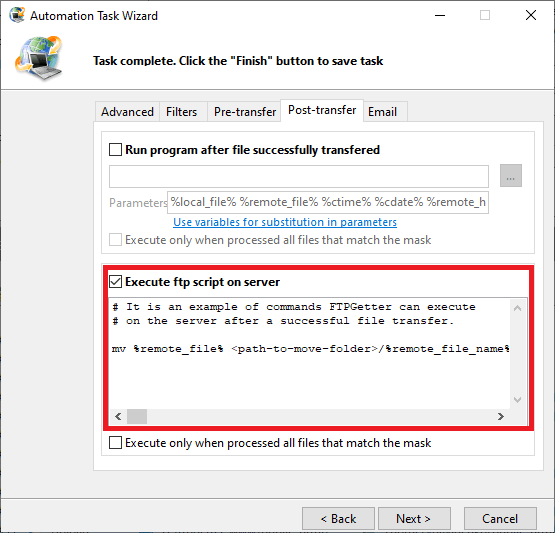
Como funciona. Após uma transferência de arquivo bem-sucedida, o FTPGetter executa o comando shell mv com dois parâmetros. O primeiro parâmetro é a variável %remote_file%, que contém o caminho completo do arquivo recentemente transferido (no servidor SFTP). O segundo parâmetro é o novo nome completo do arquivo no servidor SFTP.
Observação importante! Não recomendamos mover, renomear ou excluir arquivos transferidos porque, na próxima vez que o FTPGetter iniciar a execução da tarefa agendada, ele obviamente não encontrará o arquivo no servidor SFTP (já que acabamos de renomeá-lo/movê-lo/excluí-lo!) e o transferirá novamente! Recomendamos primeiro copiar o arquivo transferido para outra pasta e depois realizar diversas operações nele lá.
Abaixo estão exemplos de diferentes comandos shell para mover arquivos:
Exemplo #2: Mover um arquivo enquanto adiciona a data atual ao nome do arquivo.
mv %remote_file% /%remote_file_name_only%-%c_yyyy%-%c_mm%-%c_dd%.%remote_file_name_ext% 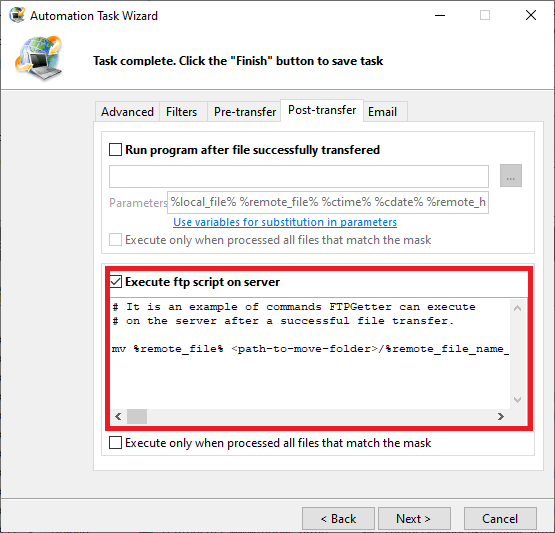
Exemplo #3: Mover um arquivo com uma nova extensão .done
mv %remote_file% /%remote_file_name_only%.done 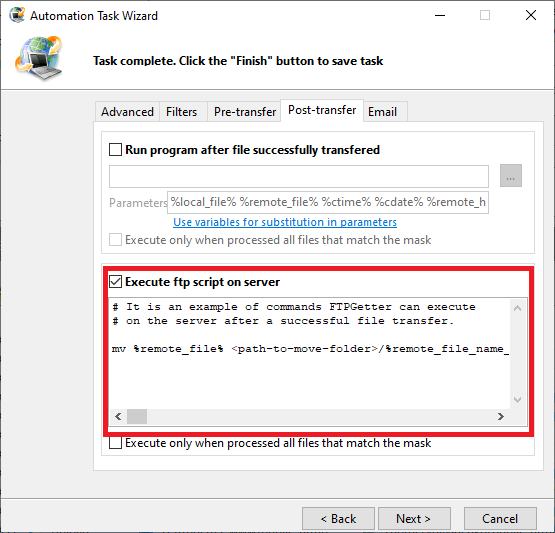
Exemplo #4: Renomear um arquivo enquanto adiciona a data atual ao nome do arquivo.
mv %remote_file% %remote_file_path%/%remote_file_name_only%-%c_yyyy%-%c_mm%-%c_dd%.%remote_file_name_ext%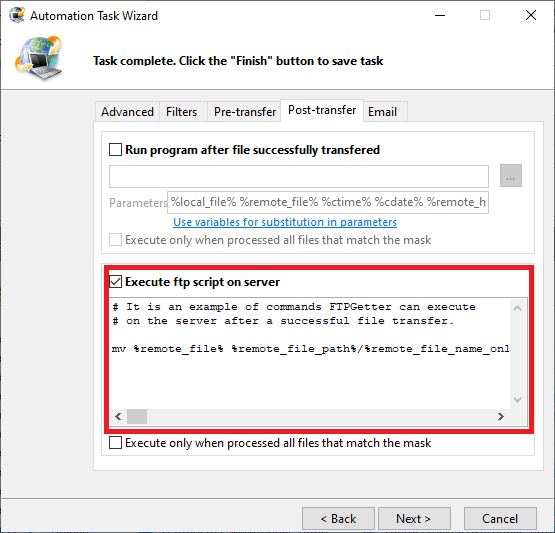
Em seguida, veremos como copiar ou descompactar um arquivo recentemente enviado no servidor SFTP.
Precisa mover um arquivo no computador local após a transferência?