
 Español ⯆
¿Cómo descomprimir un archivo comprimido en el servidor SFTP que acaba de ser cargado o descargado?
Si necesita extraer un archivo comprimido en el servidor SFTP después de una transferencia de archivos exitosa, debe utilizar un trigger posterior a la transferencia.
Un trigger posterior a la transferencia se ejecuta después de una transferencia exitosa de archivos entre el servidor remoto y el ordenador local y le permite ejecutar cualquier secuencia de comandos shell o un script shell. Como parámetros, puede utilizar variables integradas de FTPGetter, como la variable %remote_file%, que representa la ruta completa del archivo transferido en el servidor SFTP, variables relacionadas con la fecha y otras.
¡Nota importante! Para ejecutar comandos shell en el servidor SFTP, su cuenta debe tener permisos de acceso shell. Es muy fácil comprobar si dispone de estos permisos: debe poder ejecutar comandos en el servidor SFTP desde la terminal. Si su cuenta en el servidor SFTP no dispone de dichos permisos, póngase en contacto con el administrador del servidor SFTP para solicitar esta autorización.
Ejemplo #1: Extraer el archivo comprimido transferido en el servidor SFTP.
Para realizar esta operación, agregue el siguiente comando en el campo de texto del script shell.
unzip %remote_file% -d /path-to-unzip-folder/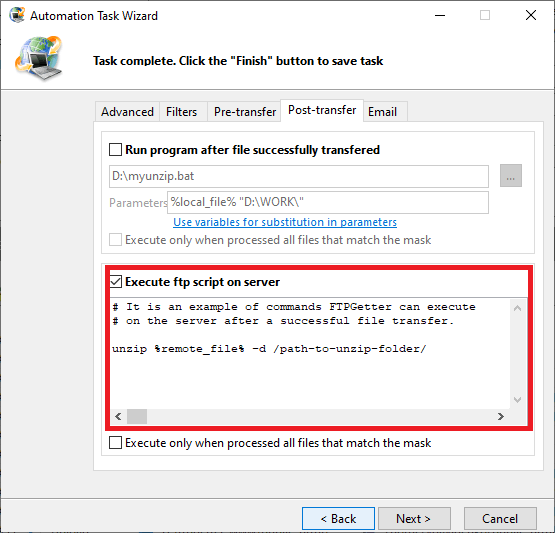
Cómo funciona. Después de una transferencia exitosa de archivos, FTPGetter ejecuta el comando shell unzip con dos parámetros. El primer parámetro es la variable %remote_file%, que contiene la ruta completa del archivo transferido recientemente (en el servidor SFTP). El segundo parámetro es la ruta completa a la carpeta en el servidor SFTP donde debe extraerse el archivo comprimido.
A continuación, veremos cómo copiar, mover o renombrar un archivo cargado recientemente.
¿Necesita descomprimir un archivo comprimido en el ordenador local después de la transferencia?