
 Español ⯆
¿Cómo descomprimir un archivo en un ordenador local que acaba de ser cargado o descargado?
Si necesita extraer un archivo comprimido en el ordenador local después de una transferencia de archivos exitosa, debe utilizar un trigger posterior a la transferencia.
Un trigger posterior a la transferencia se ejecuta después de una transferencia exitosa de archivos entre el servidor remoto y el ordenador local y le permite ejecutar cualquier programa, script de PowerShell o archivo bat. Como parámetros, puede utilizar variables integradas de FTPGetter, como la variable %local_file%, que representa la ruta completa del archivo transferido en el ordenador local, variables relacionadas con la fecha y otras.
Ejemplo #1: Extraer el archivo comprimido transferido en el ordenador local.
Para realizar esta operación, cree un archivo bat con el siguiente contenido en cualquier editor de texto.
Para Windows 10/11:
SET "fullpath=%~dp2"
if not exist "%fullpath%" mkdir "%fullpath%"
tar -xf %~1 -C %~2
Para otras versiones de Windows:
SET "fullpath=%~dp2"
if not exist "%fullpath%" mkdir "%fullpath%"
powershell -Command "Expand-Archive -Path '%~1' -DestinationPath '%~2'"
Guarde este archivo con el nombre my-unzip.bat en cualquier carpeta de su elección.
¡Nota importante! Si está utilizando FTPGetter en modo de servicio de Windows, asegúrese de que la cuenta bajo la cual se ejecuta el servicio tenga acceso completo a esta carpeta.
En FTPGetter, este archivo bat debe llamarse de la siguiente manera:
D:\my-bats\my-unzip.bat

"%local_file%" "" 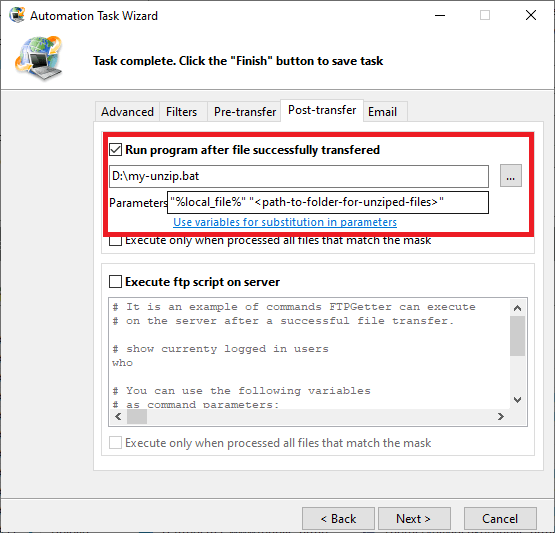
Cómo funciona. Después de una transferencia exitosa de archivos, FTPGetter ejecuta el archivo bat my-move.bat con dos parámetros. El primer parámetro es la variable %local_file%, que contiene la ruta completa del archivo transferido recientemente (en el ordenador local). El segundo parámetro es la ruta completa a la carpeta en el ordenador local donde debe extraerse el archivo comprimido.
A continuación, veremos cómo copiar, mover o renombrar un archivo descargado recientemente.
¿Necesita descomprimir un archivo comprimido en el servidor SFTP después de la transferencia?