
 English ⯆
How to avoid "Private key is invalid" or "algorithm is unsupported" error
FTPGetter is trying to connect to a remote SFTP server. The SFTP server administrators have provided you with a key file saved in .PPK format and indicated that this key should be used to connect. However, when FTPGetter tries to load the provided key, the format is not recognized, and you see one of the following errors in the log:
[Error] Private key – algorithm is unsupported
[Error] Private key – private key is invalid
Why this happens?
PuTTYgen is a common utility used for generating key files for SFTP connections. When PuTTYgen creates SSH keys, it stores them in a .PPK file, which uses its own proprietary format.
How to fix
You need to extract a private key from the .PPK file using PuTTYgen:
1. Open PuTTYgen and choose the option to "Load an existing private key file."
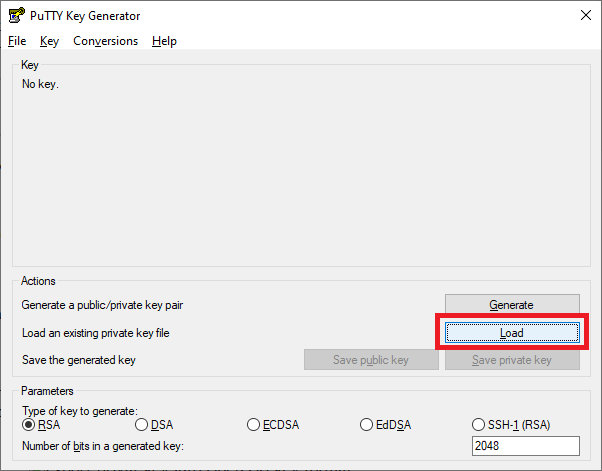
2. In the file selection dialog, choose the .PPK file you were provided.
3. The PuTTYgen window will populate with the key details.
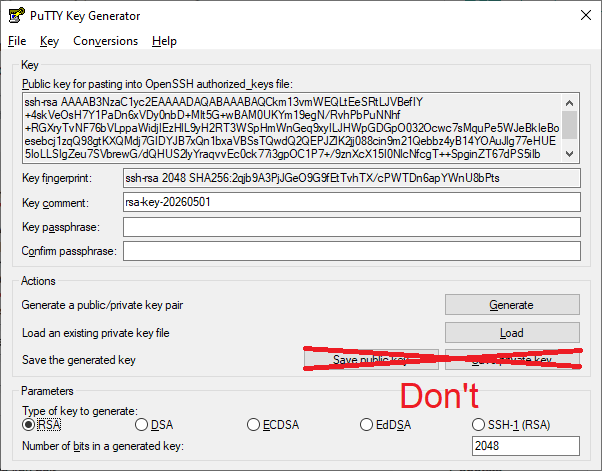
4. (Optional) Set or confirm whether a passphrase is required.
5. Go to the Conversions drop-menu and select "Export OpenSSH key."
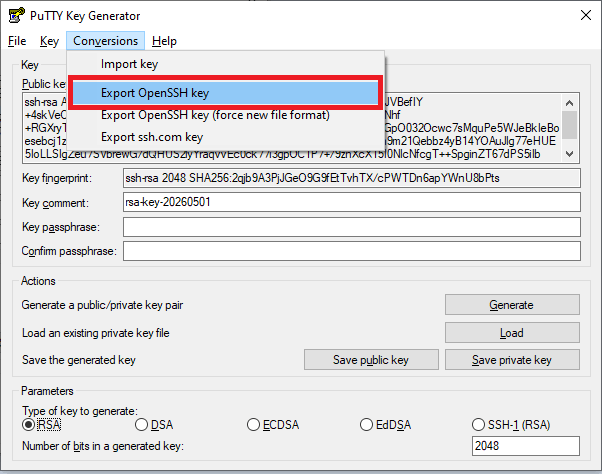
This will generate your PEM-encoded private key file. If done correctly, the file should contain ASCII armor like this:
-----BEGIN RSA PRIVATE KEY-----
<Data from key in Base64-encoded format>
-----END RSA PRIVATE KEY-----
6. Configure your FTPGetter SFTP profile to use the OpenSSH-formatted PEM-encoded private key you saved.
These steps should allow FTPGetter to establish an SFTP connection. If you continue to experience issues after converting the key to the correct format, please contact support for further assistance.