
 English ⯆
How to move a file on a local computer that has just been uploaded or downloaded?
If you need to move a file to another folder on the local computer after a successful file transfer, you should use a post-transfer trigger.
A post-transfer trigger is executed after a successful file transfer between the remote server and the local computer and allows you to run any program, PowerShell script, or bat-file. As parameters, you can use built-in FTPGetter variables such as the %local_file% variable, which represents the full path of the transferred file on the local computer, date-related variables, and others.
Example #1: Moving the transferred file to another folder on the local computer.
To perform this operation, create a bat-file with the following content in any text editor.
SET "fullpath=%~dp2"
if not exist "%fullpath%" mkdir "%fullpath%"
move /Y %1 %2
Save this file as my-move.bat in any folder of your choice.
Important note! If you are using FTPGetter in Windows service mode, make sure that the account under which the service is running has full access to this folder.
In FTPGetter, this bat-file should be called as follows:
D:\my-bats\my-move.bat

"%local_file%" "" 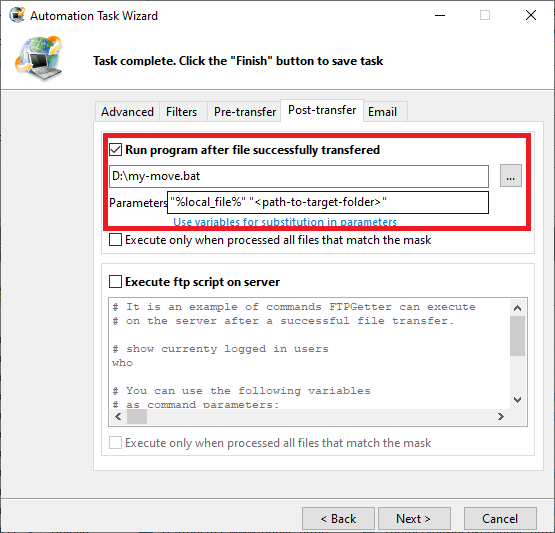
How it works. After a successful file transfer, FTPGetter executes the my-move.bat bat-file with two parameters. The first parameter is the %local_file% variable, which contains the full path of the recently transferred file (on the local computer). The second parameter is the full path to the folder on the local computer where the transferred file should be moved.
Important note! We do not recommend moving, renaming, or deleting transferred files because the next time FTPGetter starts executing the scheduled task, it will obviously not find the file on the local computer (since we just renamed/moved/deleted it!) and will transfer it again! We recommend first copying the transferred file to another folder and then performing various operations on it there.
Below are examples of different bat-files for renaming files:
Example #2: Moving a file while adding the current date to the file name.
D:\my-bats\my-move.bat

"%local_file%" "%local_file_name_only%-%c_yyyy%-%c_mm%-%c_dd%.%local_file_name_ext%" 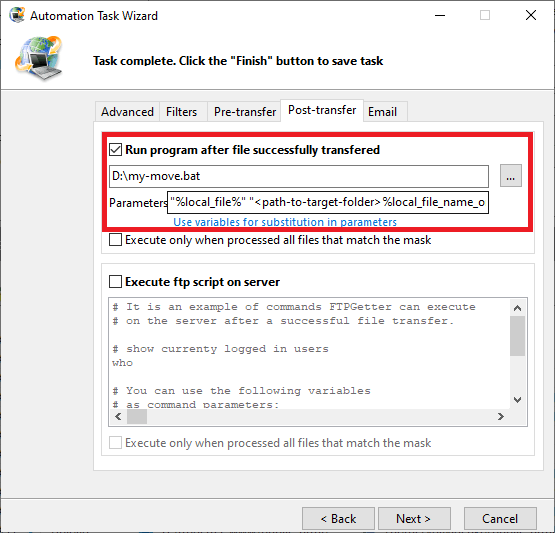
Example #3: Moving a file with a new .done extension
D:\my-bats\my-move.bat

"%local_file%" "%local_file_name_only%.%local_file_name_ext%.done" 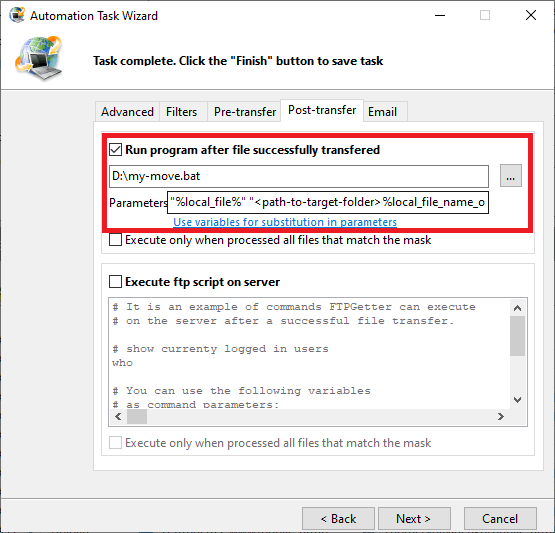
Example #4: Moving a file into a folder with the current date added to the subfolder name.
D:\my-bats\my-move.bat

"%local_file%" "\%c_yyyy%-%c_mm%-%c_dd%\%local_file_name_only%.%local_file_name_ext%" 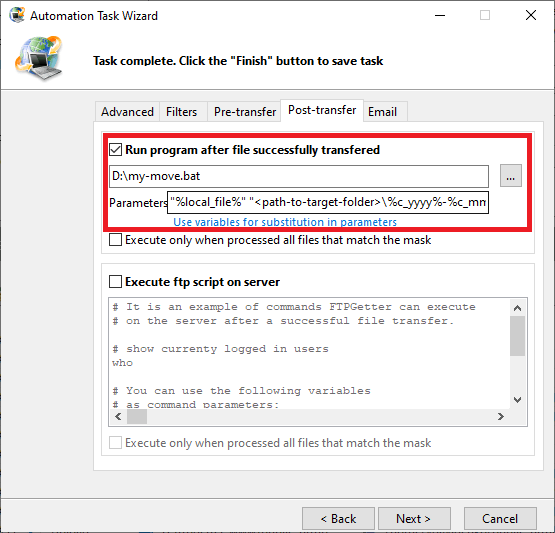
Next, we will look at how to copy, rename, or unzip a recently downloaded file.
Need to move a file on the SFTP server after transfer?