
 English ⯆
SFTP server connection settings
As you already know FTPGetter stores all information on each sftp server it is working with, in a profile. Let's review connection settings for sftp server in detail.
Common settings
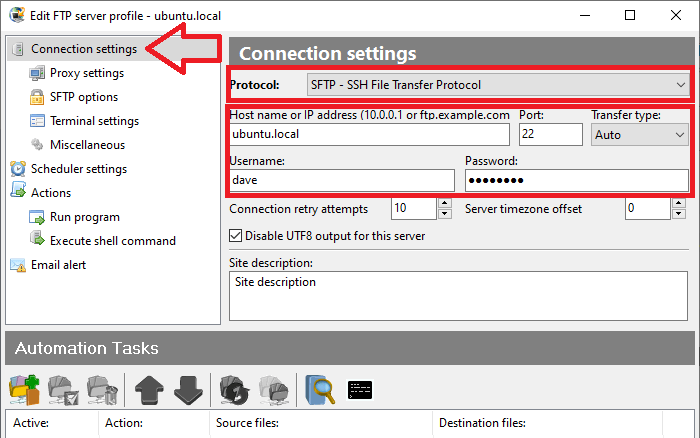
To connect to SFTP server you need to set connection protocol -
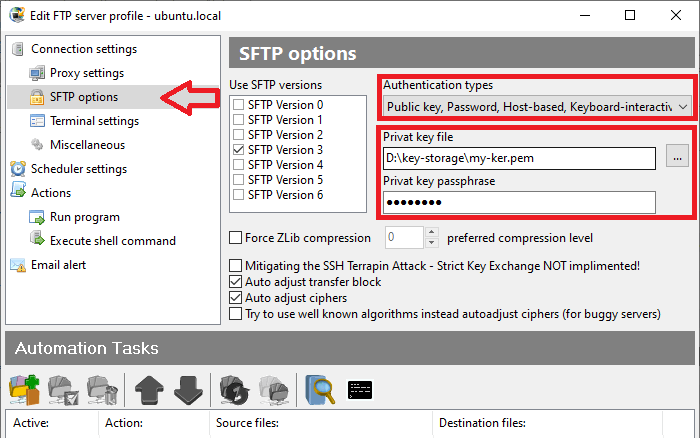
If you need to use a private key to connect to the server, set the "Public key" authentication method, specify the path to the private key file, and enter the private key password if necessary. If you received the key in .ppk format, you need to convert it to .pem/.crt format using PuTTYGen.
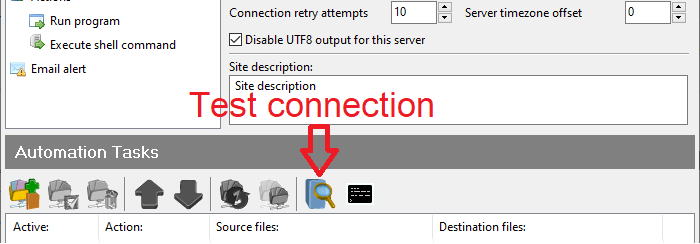
Now you need to test the connection.
FTPGetter check connection possibility. If the server's public key is not yet saved in the profiles key storage - FTPGetter will offer to save the public key.
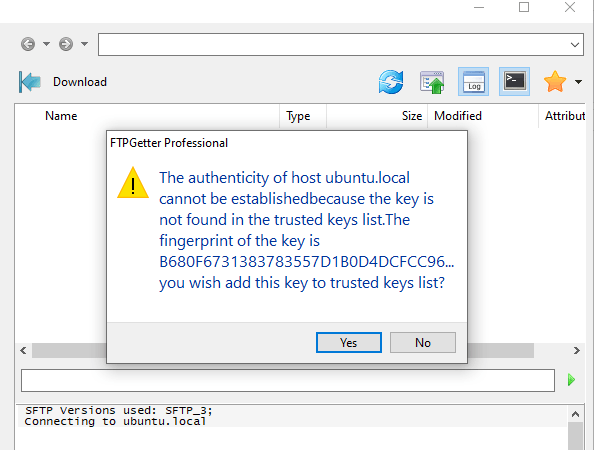
Further connections in automatic mode are possible only if you have explicitly chosen to trust this server by saving its public key.
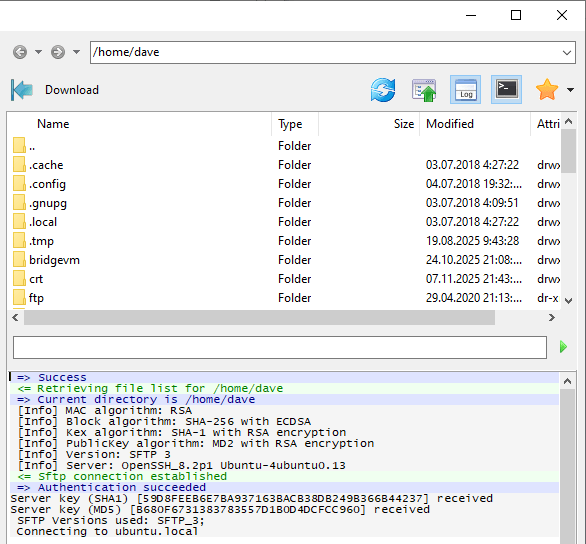
If in the future the server's public key changes - you will see a connection error message in the profile log. You will need to reopen this server in the Site Explorer and save the server's public key in the profiles key storage.
Well, now you know how to set up connection to SFTP server. It's time to consider creating ftp upload and download tasks.