 English ⯆
How to restart FTPGetter launcher service using Windows Task Manager
If you use FTPGetter as a Windows service, the FTPGetter Laucher service sometimes freezes and stops executing profile tasks. You have to restart the service for FTPGetter to start working again. To avoid missing the service freeze and manually restarting it, we wrote a PowerShell script. This script should be executed as a Windows Task Scheduler task.
What does the script do?
It checks whether the service responds to control commands. If not, the script closes the FTPGetter GUI, terminates and restarts the FTPGetter Laucher service, and notifies the user that the service has been restarted.
Here is the link to download the script from our website RestartFTPGetterLaucher._ps1. After downloading, change the file extension to .ps1
How to create a task to run a script in Windows Task Manager
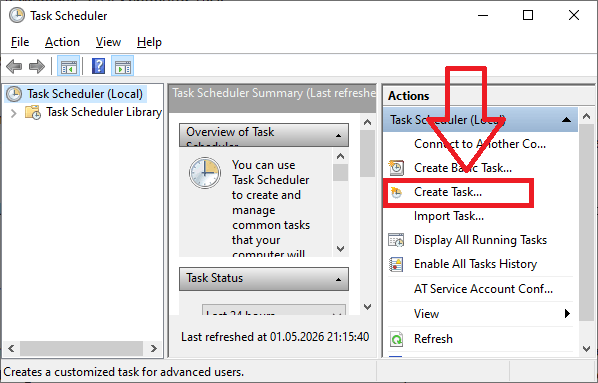
Open Task Scheduler (Start > in search type Task Scheduler and select when found). Once Task Scheduler opens, in the right column window click on Create Task...
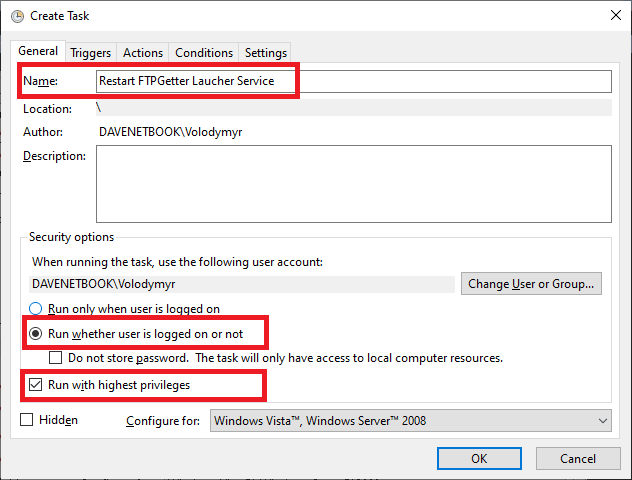
In the General tab, type a name for the task - Restart FTPGetter Laucher Service. Enable the Run whether user is logged on or not and Run with highest privileges.
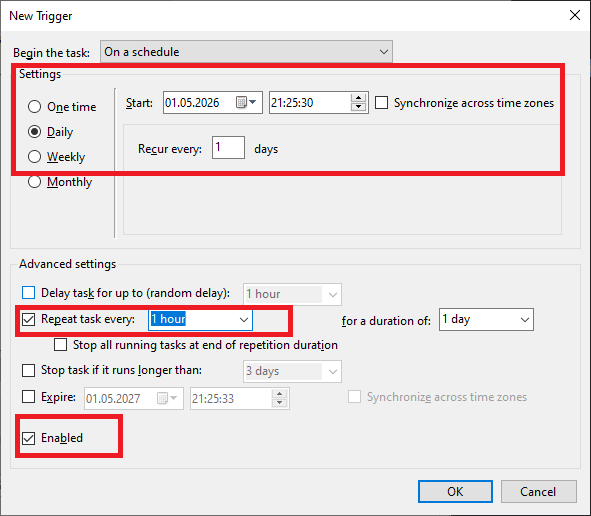
On the Triggers tab select New...
Begin the task: On a schedule
Settings: Select the option needed...e.g. Daily
Select the Start: day and time the task will start triggering.
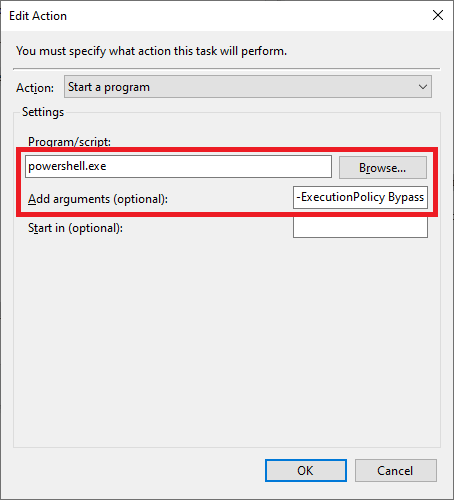
On the Actions tab, click New... Action: Start a program Program/script: type powershell.exe. Set arguments to -ExecutionPolicy Bypass -File "C:\ProgramData\FTPGetter\RestartFTPGetterLaucher.ps1" where "C:\ProgramData\FTPGetter\" - folder where you save .ps1 script.
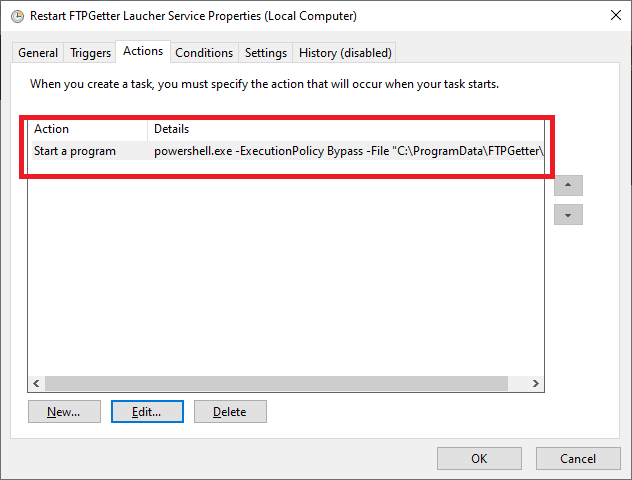
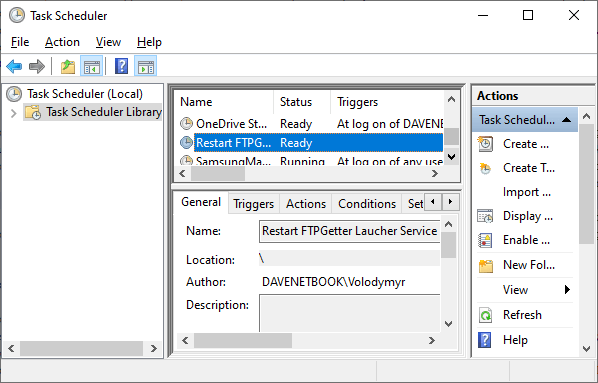
Leave the rest of the settings default and slect OK again to create the task. You will be prompted to enter user credentials with administrative rights if "Run with highest privileges" was selected. Use _your_ Windows User user credentials. Now click on Task Scheduler Library folder in the left column, verify the schedule has been created and is listed.